9. Scripting
9.1. Overview
The analysis of a full experiment requires to fill and run a batch for several dozen participants, with several runs each. Filling them manually can be tedious and time consuming. More importantly it is prone to errors. Moreover, more and more journals ask the authors of articles experimental results to provide the material necessary to reproduce the published results. This includes the dataset (in BIDS format) and a set of scripts that will automatically generate all the figure and statistics.
Scripting your analysis has another advantage: it makes it very easy to re-run your preprocessing and analyses in the case you made a mistake.
9.2. Steps
Create a template batch with all the necessary steps and runs. Fill all the fields that will be the same for all participants
Write a matlab script that will find the files and information needed to complete the batch
Create subject-specific batches using the script to check they are right.
Run the batches for all participants in a loop.
9.3. Pre-requisite
You will need to learn the basic of programming in matlab. To get started you should focus on learning:
the matlab environment
what is a variable
the different data types in matlab (vector, matrices, cell arrays, structure, table)
what is a function and learn about basic built-in functions
conditional statements
loops
There are several good websites and courses available online.
https://www.antoniahamilton.com/matlab.html
https://matlabacademy.mathworks.com/details/matlab-fundamentals/mlbe
The coursera modules are very well organised, although more time consuming. For very motivated students. https://www.coursera.org/learn/matlab#syllabus
9.4. Preprocessing scripting Exercises
For each of the exercise, type the command in Matlab Command Window and look at the generated result. You can also open the created variables by double-clicking them in Matlab Workspace.
9.4.1. Exercise 1 – list the content of a folder
Open matlab. Point the working directory to the preprocessing folder (you can use the command ‘cd’ or the user interface
% set working directory to preprocessing folder
cd /home/lab1user/STUDENT-DATA/PSYC724_LAB-DATA/03_derivatives/spm-preproc
List the folders containing the data. Folders are names with the participants IDs
% lists all directories starting with the string ‘sub’
sub_folders = dir('sub*')

% displays the ID of the second participant (ordered alphabetically or numerically)
sub_folders(2).name
Create a variable (a cell array) containing the participants’ IDs
sub_names = {sub_folders.name}
Numerical arrays are created using square brakets [1 3 15 6] while arrays of strings can be stored in cells using curly brackets {'A' 'C' 'hello'}
Now that we have a cell array containing our participants’ IDs, let’s see how to call them individually.
sub_names{1}       % displays the ID of the first participant

sub_names{3}       % displays the ID of the third participant
9.4.2. Exercise 2 – create a loop over participants
Find the number of participants
numsub = numel(sub_names)
Loop over particiants and display their IDs
for i=1:numel(numsub) % create loop

% prints the ID of the current participant in the command line
fprintf('%s\n', sub_names{i});

end; % end loop
9.4.3. Exercise 3 – use fullfile and spm_select
Function Fullfile recreates the path using OS specific separators / for Linux and MacOS, or \ for Windows
% create string variable containing the preprocessing directory path
preproc_path = '/home/lab1user/STUDENT-DATA/PSYC724_LAB-DATA/03_derivatives/spm-preproc'

% generate the path to participant 2's data directory
fullfile(preproc_path, sub_names{2})

% generate the path to participant 3's functional data directory
func_path = fullfile(preproc_path, sub_names{3}, 'func')

% check if directory path exists, return 1 if yes, 0 if not
exist(func_path, 'dir')
Spm_selectselects image from 4D files using filters
% select all files with extension .nii in directory which path is specified in ``func_path`` variable
func_files = spm_select('ExtFPList', func_path,'.*\.nii',Inf);

% to see the first 4 lines in the variable:
func_files(1:4, :)
9.5. Generating the template
To generate a template:
Create a full preprocessing batch as described earlier.
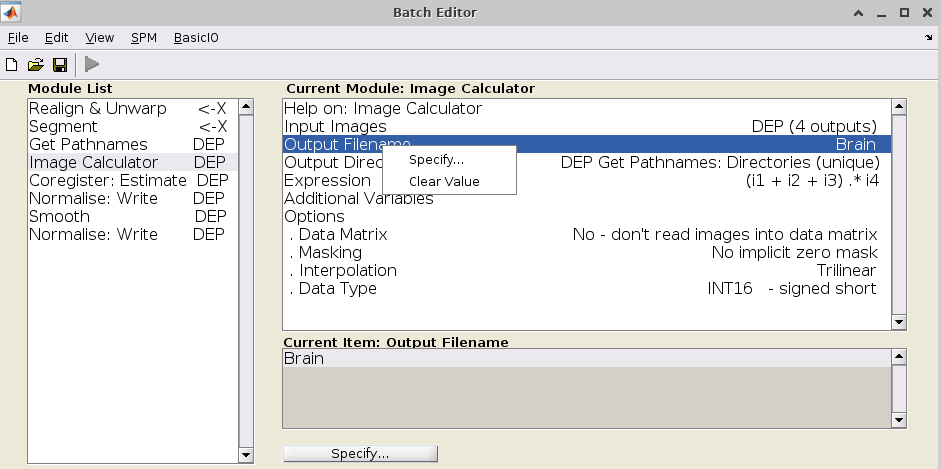
In ‘Image Calculator’, right click on ‘Output Filename’ input and select clear value.
Make sure that all the fields match what your data parameters and desire options.
Save the batch (
File->save batch) in 03_derivatives/spm-preproc/batches as template_batch_preprocessing.mat
9.6. Writing the script
Get Script_preproc_2befilled.m and open it in the matlab editor
Replace the preproc_path entry to your local directory. It should contain a folder per participant, containing the MRI data and a folder ‘batches’ containing the template
Go through the script line by line, read the comments (in green)
Use the debug mode to run the script line by line and look at the variable generated in the matlab workspace
Complete the missing lines - you should be able to do it if you understood the exercises above.
Run the full script with option run_job = 0.
Open the of the generated batches created by the script in the batch folder.
If they look fine, run the script again with option run_job = 1;