3. Realigning and Unwarping the Data
This step of preprocessing will realign the functional images. If you think of a time-series as a deck of cards, with each volume as a separate card, realignment will put all the cards in the same orientation and make the sides line up - similar to what you do after you shuffle a deck of cards.
If you click on the button Realign (Estimate & Unwarp), a window opens up showing the options for realigning and reslicing the data. The Estimate part refers to estimating the amount that each volume is out of alignment with a reference volume, and Reslice indicates that these estimates will be used to nudge each of the volumes into alignment with the reference volume. The reference volume is set in the field “Num Passes”, which allows you to specify whether the volumes will be aligned to the mean of all of the volumes, or to the first volume. For this tutorial, leave it as the default, and leave the rest of the defaults alone, as well.
Note
In this preprocessing step and in the steps that follow, we will leave most of the defaults as they are. These defaults have been calculated to produce the best results for a wide range of image field of views, voxel sizes, and so on; that said, you may find that it is useful to change the defaults of the File Prefix, for example, to something you find more intelligible. If you decide to change any of the other options, clicking on them will open a help file which is displayed in the information box at the bottom of the Batch Editor screen.
3.1. Loading the Images
Click on the Data field and create five new Sessions. Double-click on the first Session, and in the Filter column type run-01. In the Frames field, enter Inf and press enter; select all of the frames that are displayed, and click Done. Do the same procedure for the run-02 files for the second session, and so on.
Now that you have filled in all of the fields that had a <-X next to them, the “Play” button in the top left corner of the screen has changed from grey to green. Save the batch. Click on the save icon, give you batch an explicit name, e.g. batch_sub-[id]_realign.mat and place it in 03_derivatives/spm-preproc/batches/. Click on the button to begin the Realignment preprocessing step.

Note
Regular expressions can be used to create very specific filters. For example, if you type the string run-01.* in the Filter field, the file window will return only those files that contain the string “run-01” anywhere in their name. Typing the string ^sub.* will return any files that begin with the string “sub” (signalized by the carat symbol, ^). This will exclude the output images from the slice timing step. To get images strarting with ‘sub’ AND containing run-01, type ^sub.*run-01.
3.2. Exercises
In the Filter field, the dollar sign (
$) can be used to return files that end with a particular string. For example, typingrun-01_bold.*$would return those files that end with the string “run-1_bold”. Use the filter field to return only those files that end withrun-02_bold. If you’ve run the realignment step, use the filter to field to return those files that begin withrsub-[id]. Use the Frames field to select the frames 10-20.
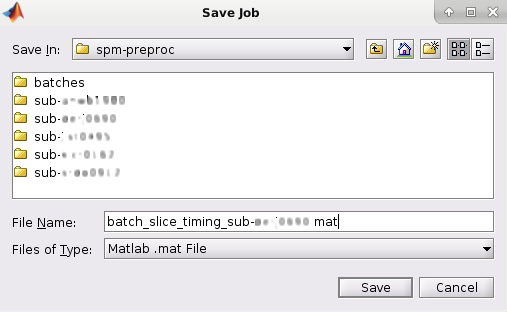
Save the batch. Click on the save icon, give you batch an explicit name, e.g. batch_sub-[id]_realign.mat and place it in 03_derivatives/spm-preproc/batches/.
You can then run the job by clicking the green arrow.
Re-run the realignment step on just the run-1 images, changing the value in the Quality field from 0.9 to 0.5. When you highlight the Quality field, read the help text at the bottom of the window. What do you think this change will do to the quality of your realignment? To keep these files separate from the other output, change the Filename Prefix to
qual_05. Check the output in the Check Reg window, loading a representative image from the rsub-[id]_task-faceobj_run-01 files, and an image from the qual_05 files you just created. Do you notice any difference between them? Why do you think that there is or is not a difference?Re-run the realignment step by changing the Num Passes from “Register to mean” to “Register to first”. Read the help file and determine what the tradeoffs are. Which one would you prefer to use as the default for your analysis, and why?
3.3. Video
For a video introduction to preprocessing and how to do realignment, click here.
3.4. Next Steps
When the images have been realigned, you are ready to coregister the functional data to the anatomical data; in other words, we will align the two sets of images as best we can.